




PricePal is a free browser extension by SellerSprite that helps Amazon sellers and e-commerce users quickly verify how a product performs on Amazon. By matching product images, it connects supplier listings on 1688 or Alibaba with their identical listings on Amazon US, showing real-time sales data in one click.
This guide explains what PricePal does, how to install it, how to use it, and provides practical tips for sourcing decisions.
1. What PricePal Does
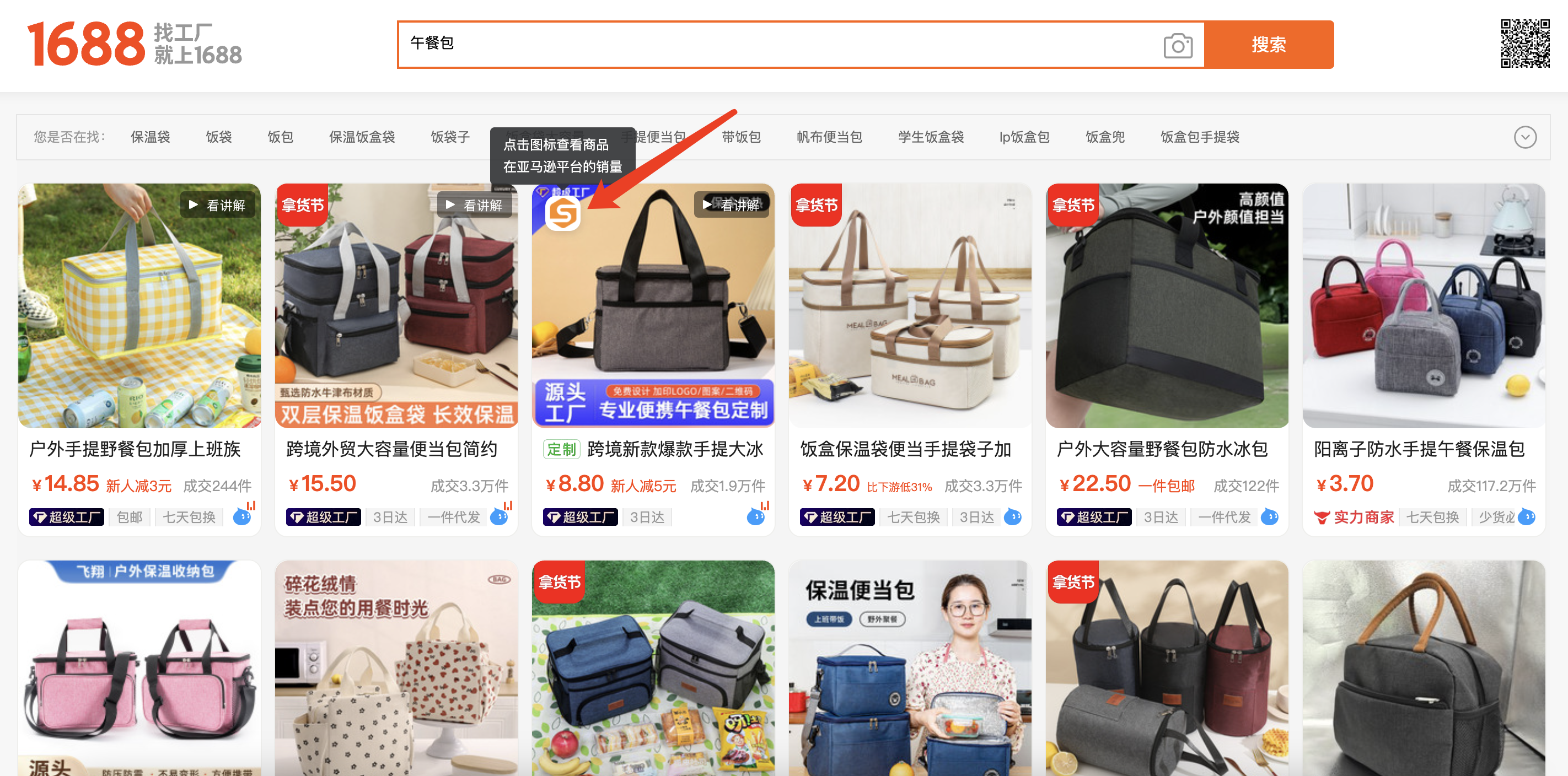
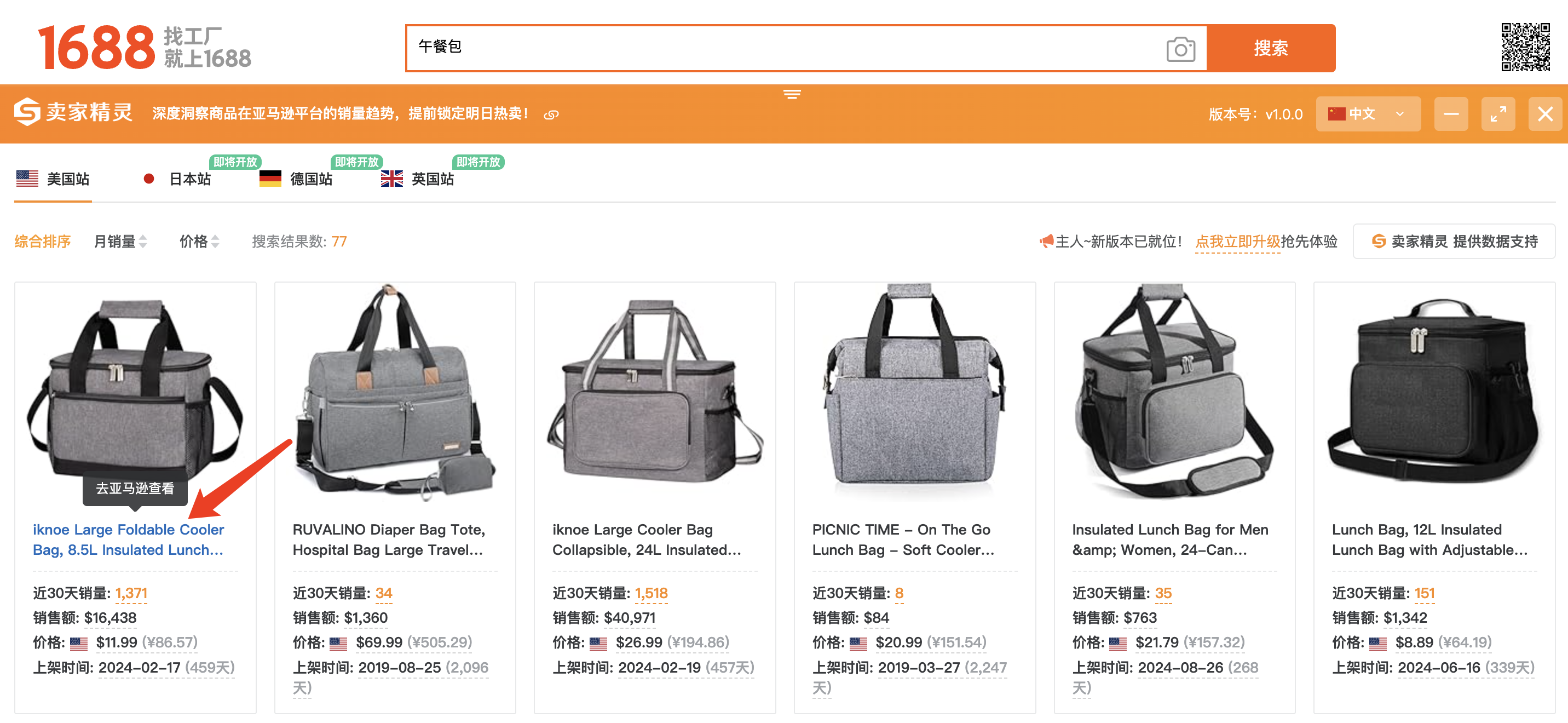
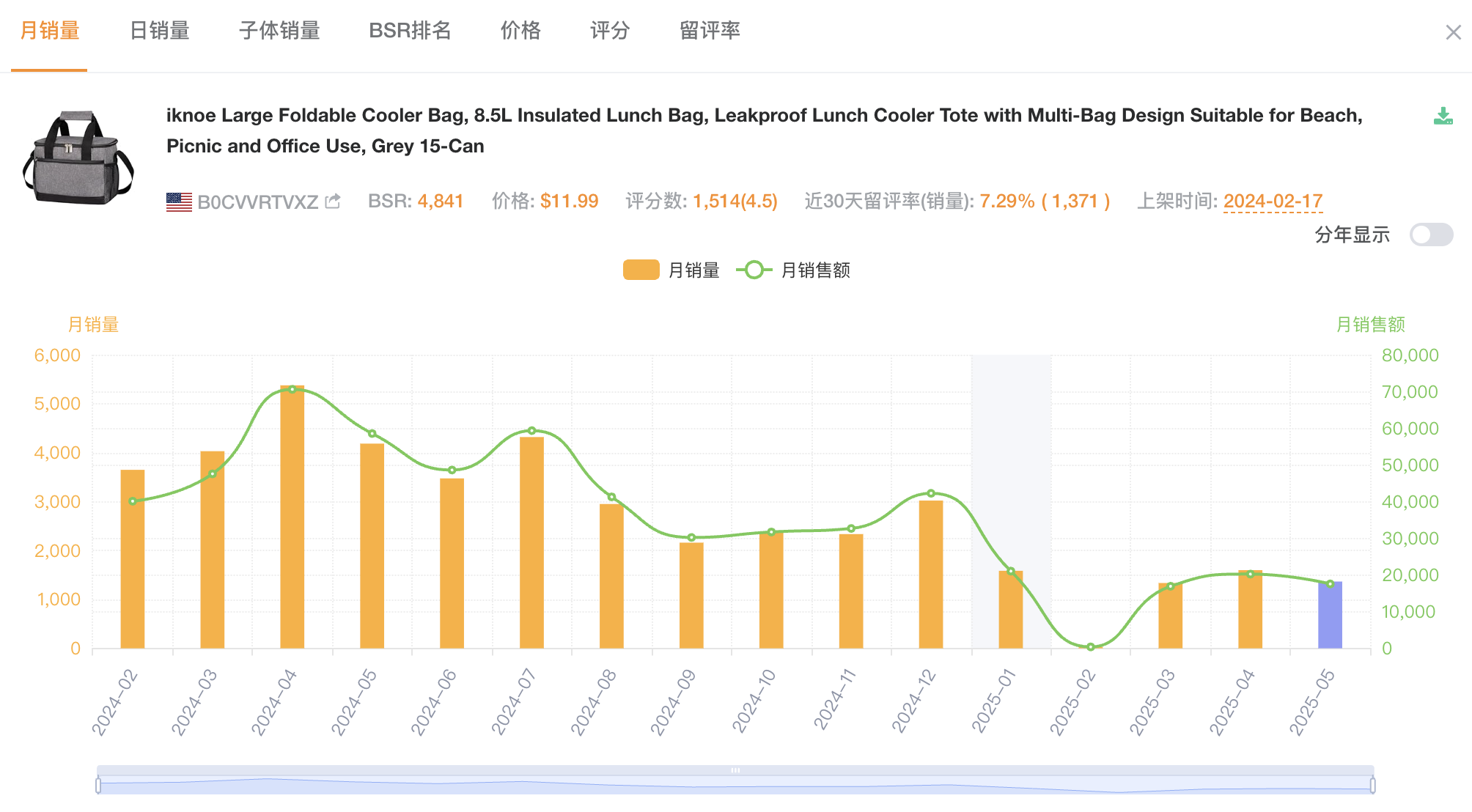
When browsing wholesale sites such as 1688 or Alibaba, you can use PricePal to see how well the same product sells on Amazon. The extension analyzes the main image on a supplier page, searches Amazon for identical or visually similar items, and shows their estimated sales volume and selling price.
Key Features
- One-click image matching: Click the PricePal icon on any product image to view its Amazon performance.
- Amazon sales insights: Displays estimated monthly sales, current Amazon price, and listing details for identical items.
- Data accuracy: Figures are based on Amazon API data and updated daily, providing reliable sales estimates.
- Instant comparison: Save hours of manual research by checking product demand directly while sourcing.
- Cross-border utility: Ideal for Amazon sellers, online arbitrage users, or anyone comparing supplier and Amazon markets.
With PricePal, you can quickly determine whether a supplier product has high demand, stable pricing, and profit potential on Amazon before making sourcing decisions.
2. Supported Platforms and Requirements
- Browsers: Supports Google Chrome and Microsoft Edge (Chromium version).
- Websites: Works on 1688.com and Alibaba.com.
- Marketplace data: Currently shows Amazon.com (US) sales. Support for other marketplaces is planned.
- Devices: Desktop only. The extension does not support mobile browsers.
3. Installation Guide
Option A: Install from Chrome Web Store
- Open the Chrome Web Store and search for PricePal: Compare Identical Product Sales.
- Click Add to Chrome and confirm installation.
- Pin the PricePal icon to your toolbar.
- Log in to your SellerSprite account when prompted to enable full data access.
Option B: Install from Microsoft Edge Add-ons
- Visit the Edge Add-ons Store and search PricePal.
- Click Get and confirm installation.
- Pin the icon for quick access, then sign in with your SellerSprite account.
Option C: Manual Installation for Restricted Regions
- Download the
.zipfile. - Unzip it to a local folder.
- Go to
chrome://extensions/oredge://extensions/. - Enable Developer Mode, click Load unpacked, and select the unzipped folder.
- The PricePal icon will appear in your toolbar. Manual versions do not auto-update.
Ready to install PricePal?
Download the extension directly from the Chrome Web Store or Microsoft Edge Add-ons Store and start comparing identical product sales instantly.
4. How to Use PricePal
PricePal is designed for simplicity. You can check Amazon data directly while browsing supplier sites.
Step 1. Browse Products
Open 1688 or Alibaba and view a product page or search results. Hover your mouse over a product image.
Step 2. Activate PricePal
When the PricePal icon appears on the image, click it. The extension automatically searches Amazon for the same or similar product.
Step 3. View Sales Insights
A small pop-up window will display:
- Estimated Monthly Sales on Amazon
- Amazon Price
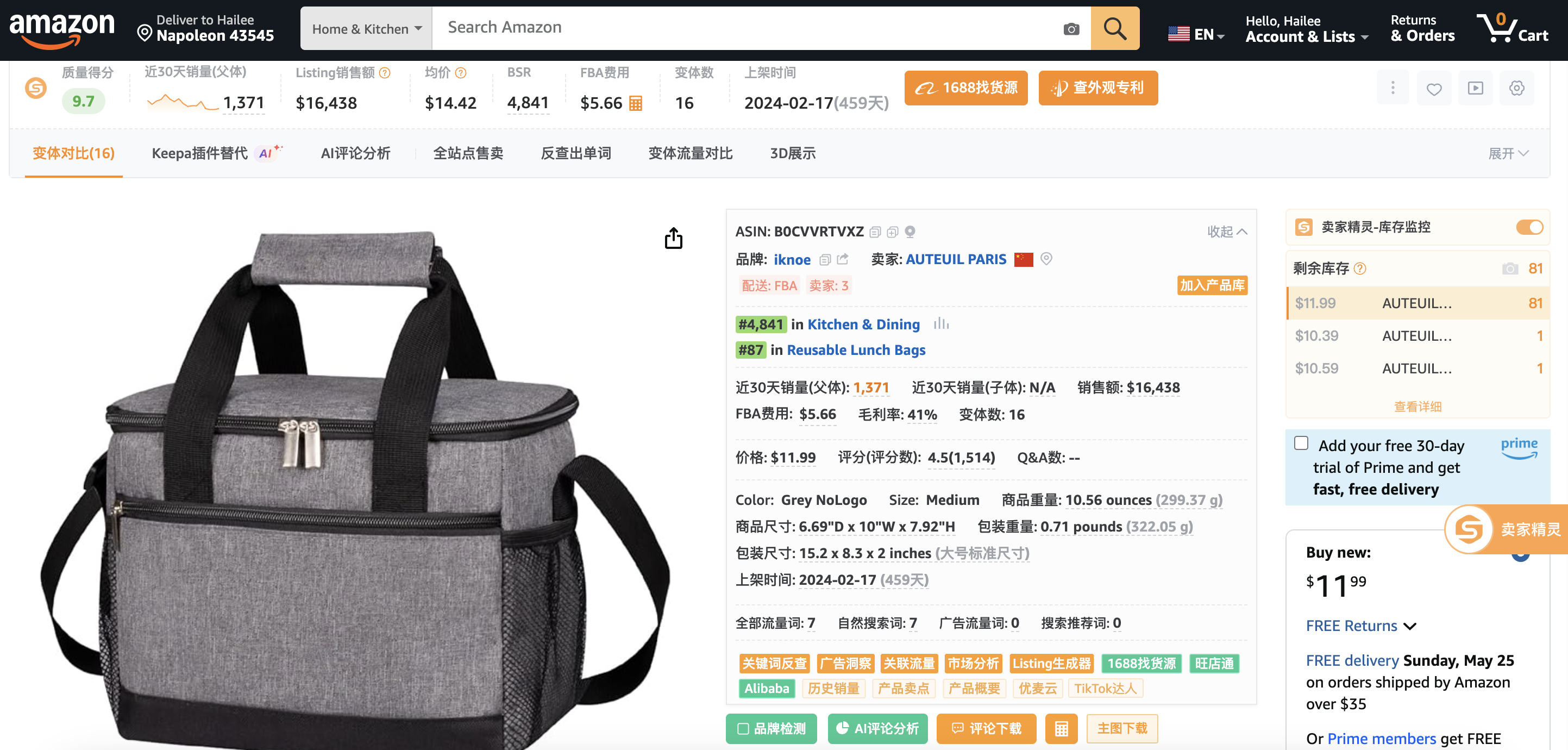
- Listing title and ASIN link to open the product on Amazon
- Review count or seller count if available
Step 4. Evaluate Results
- Demand: Higher monthly sales indicate stronger market demand.
- Profit Margin: Compare Amazon price after fees with supplier cost.
- Competition: Many sellers or thousands of reviews may indicate a saturated market.
- Listing Age: New products with good sales may represent emerging opportunities.
Step 5. Deep Dive Optional
Click the Amazon link in the pop-up to open the listing and explore Best Sellers Rank, customer reviews and feedback, and pricing strategy and variations.
5. Practical Tips and Best Practices
Validate Demand
Focus on products with at least 500 monthly sales on Amazon to ensure consistent demand. Avoid items with very low or irregular sales.
Check Profitability
Estimate quickly:
Profit = (Amazon price × exchange rate) − supplier cost − Amazon fees
Aim for at least 30% profit margin after costs.
Avoid Over Saturated Products
If the Amazon listing shows many sellers or a very high review count, competition may be strong. Consider finding alternatives with fewer competitors.
Spot Early Trends
New listings with solid sales and few reviews often represent new opportunities. These are worth tracking.
Use with Other Tools
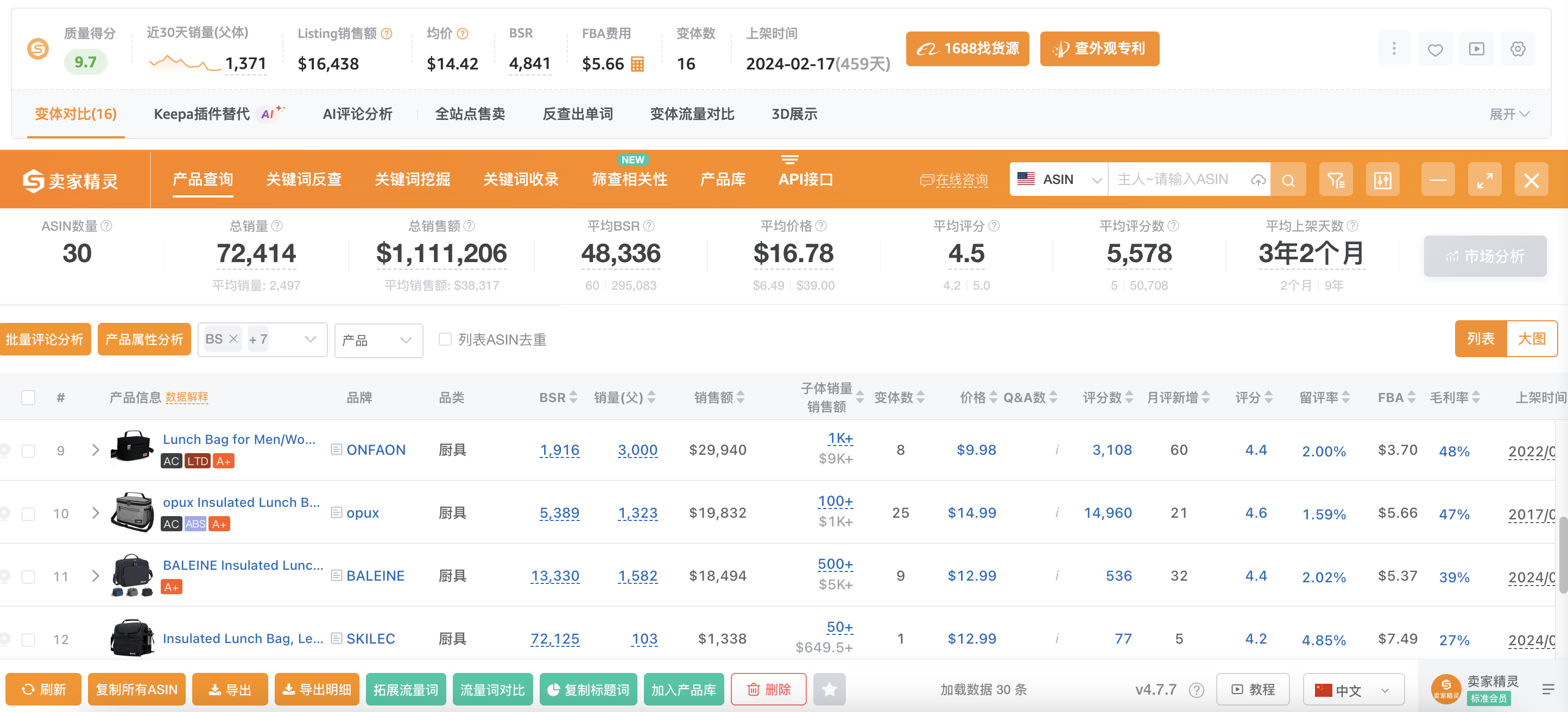
PricePal offers a quick snapshot. For deeper research like historical sales or keyword demand, use SellerSprite’s main tools or Chrome extension.
Keep Updated
Data refreshes every 24 hours. Make sure your extension is updated for the latest marketplace and site support.
Handle No Match Cases
If PricePal cannot find a match, try similar images or search manually. Slight differences in packaging or branding can affect image recognition.
6. Troubleshooting
- No icon appears: Refresh the page or ensure it is fully loaded.
- Extension not responding: Check if you are logged in and using the latest version.
- Data not loading: Disable ad blockers or VPNs that may interfere.
- Wrong match: If the Amazon result looks different, ignore it or verify manually.
7. Why Use PricePal
PricePal helps you make data-driven sourcing decisions by combining supplier information with real Amazon market data. It allows you to verify product demand instantly, estimate potential profit margins, avoid low-demand or unprofitable items, and discover trending opportunities early.
8. Summary
PricePal: Compare Identical Product Sales is a simple yet powerful tool that connects supplier listings with Amazon performance data. It is easy to install, straightforward to use, and accurate for daily product research.
Whether you are a professional Amazon seller or a beginner exploring product sourcing, PricePal helps you identify profitable products faster and reduce risk.
Want to explore more SellerSprite extensions? Check the SellerSprite Extension Installation Guide to learn how to set up and use all SellerSprite tools in your browser.